 Vencito
Download free ↗
USING VENCITO
How to add products in Vencito
Scan, take a photo, add the receipt or pick from a list: four ways to get everything logged in a few minutes.
Vencito can only warn you about what you added. Adding a product takes a few seconds, and there is more than one way to do it depending on what you have at hand: the package, the receipt, or just wanting to finish fast. Here are the four, and when each one fits.
This note is a guide to sorting what you already have at home. It is not medical or legal advice, and it does not replace what the package says or the rules where you live. If something looks wrong, smells off, or the package is damaged, do not use it. If you are unsure about your health, ask someone qualified.
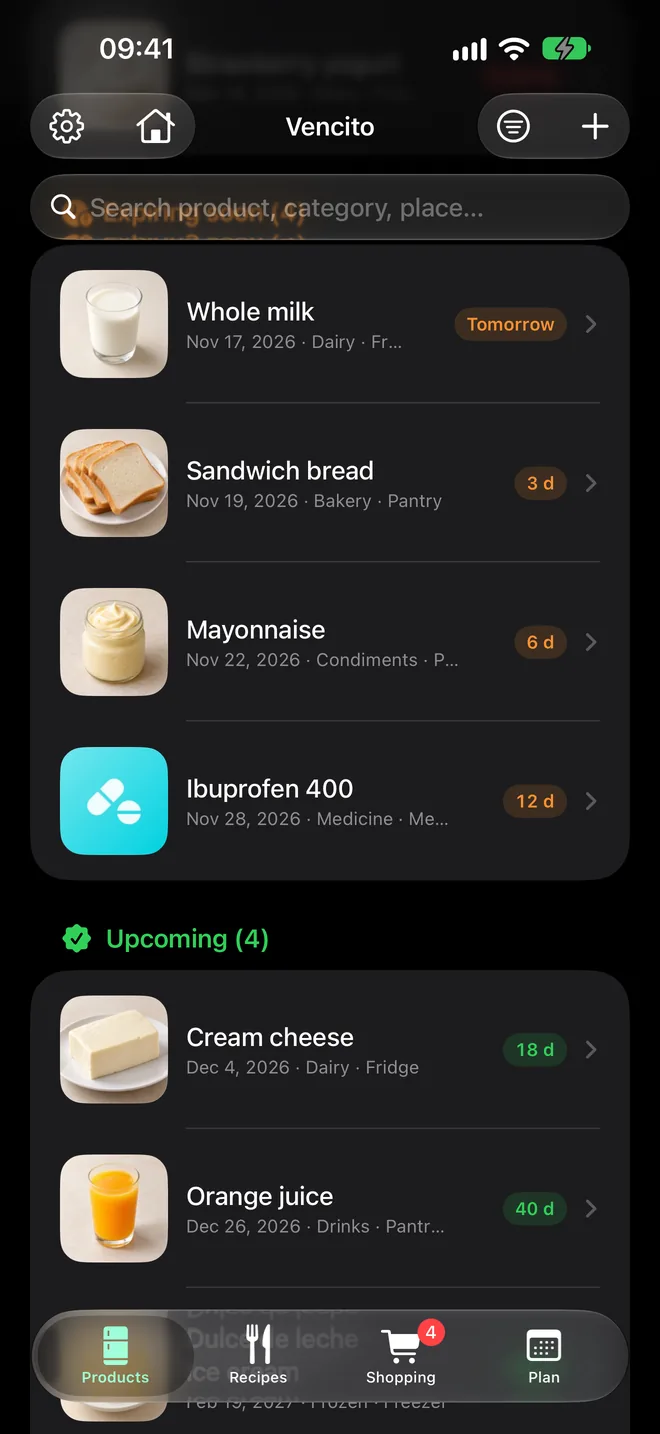
1. Live scan: barcode and date
This is the most complete way. Tap +, point the camera at the barcode and then at the expiration date. Each step plays a different sound so you know it moved on, and you can turn on the flashlight in low light.
With the barcode, the app fills in name, brand and category: first from dictionaries built into the app, offline, and then from Open Food Facts. Only the barcode number is sent, nothing else.
2. Package photo
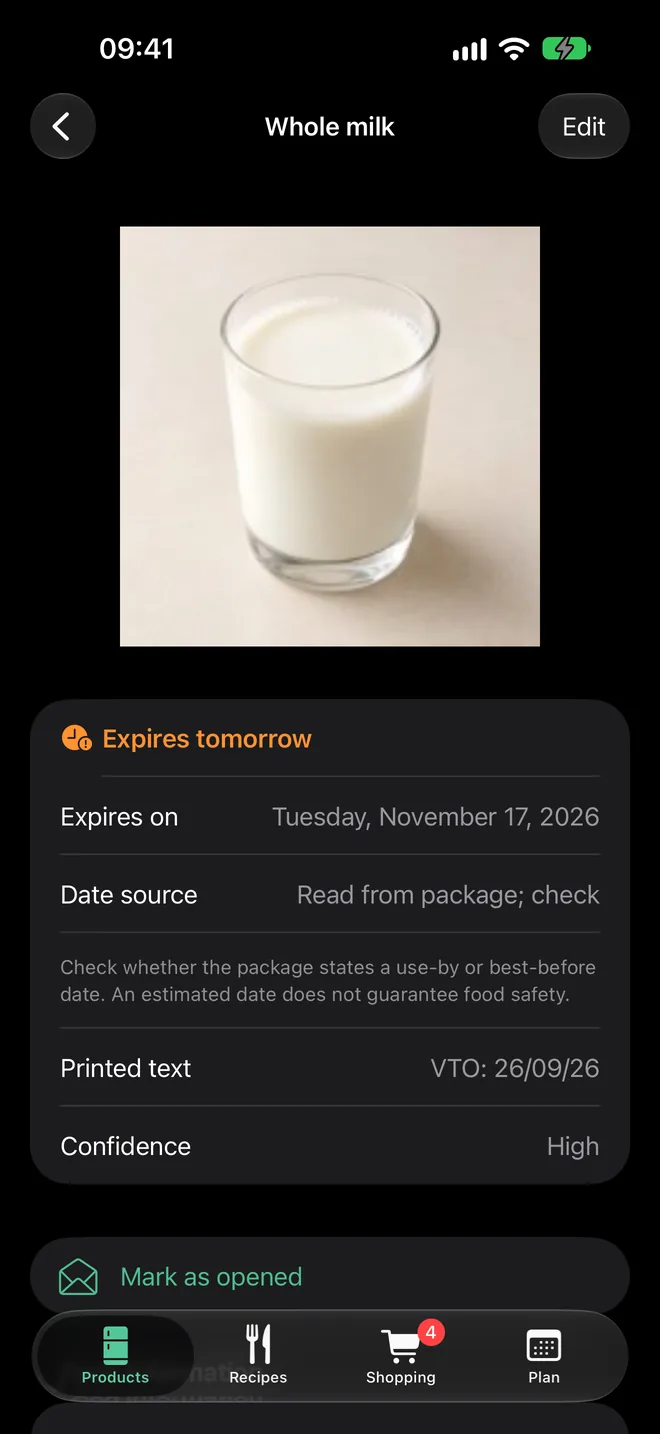
If the product has no barcode or you prefer not to scan, take a photo from Camera or pick one from the Gallery. The app reads the date on your phone and suggests the name from the largest text in the photo. Check the date before saving; if it is wrong, fix it by hand.
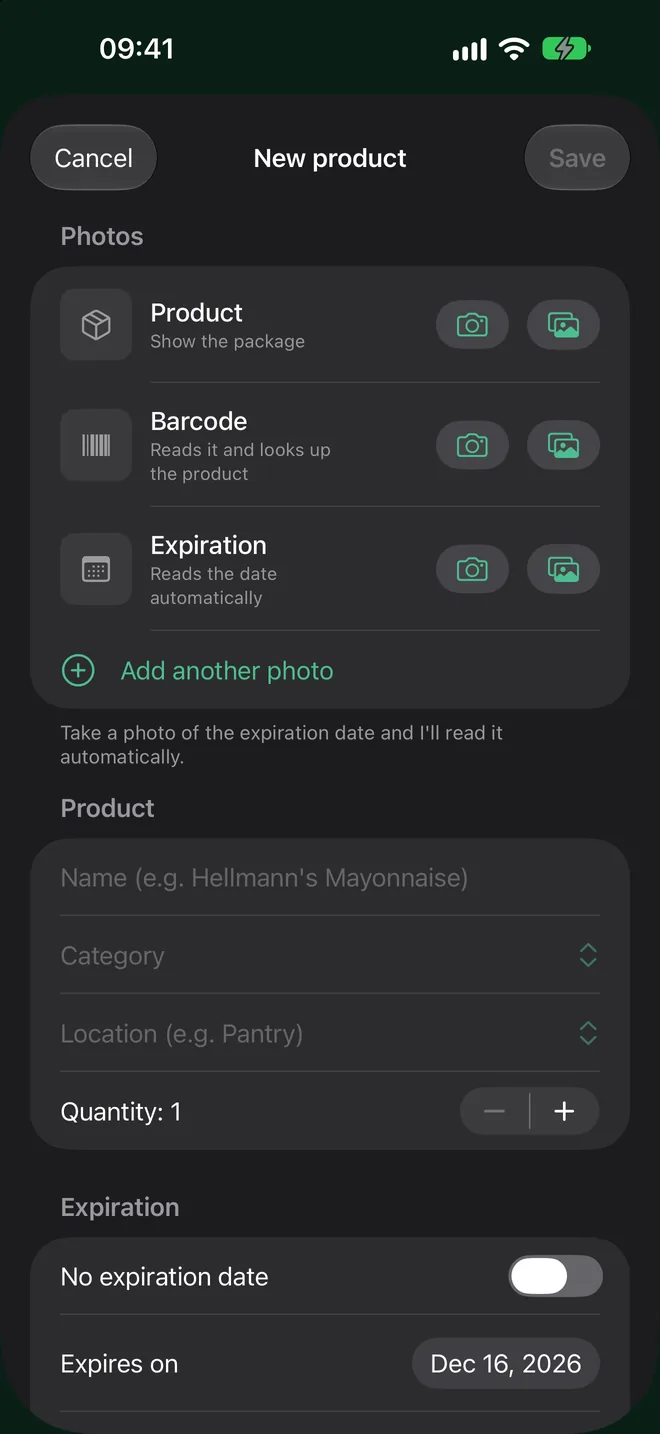
3. Shopping receipt
When you come back from the store with a full bag, you do not need to scan everything. Add the receipt with a photo (camera or gallery) or the PDF: Vencito reads the lines, leaves out taxes, payments and discounts, and suggests an estimated expiration for each product.
It is an estimate, not the date on the package. If you want precision, correct it when you open each product.
4. Quick add
For the usual things (milk, eggs, bread, fruit and vegetables), use quick add: pick from a list with photos and the product is added without scanning anything. It is handy for fresh food, which often has no barcode or printed date.
Several products in a row
To add many at once, press and hold + and choose Add several: the camera stays open and you scan one after another without going back to the list.
What if it has no date?
You can still add it. Products without an expiration date go to their own group: they do not send alerts or show in the widget, but they stay logged so you know you have them.
Once they are added, order at home helps too. See How to organize the pantry.
Add what you have.
Try any of the four ways. Vencito warns you before it expires so you use it in time. The app is on the App Store and Google Play.


Free · No ads · No account